
How to connect Claude Code Desktop to Apily
Install Claude Desktop, connect your Apily API key in its built-in third-party inference settings and start working in the Code tab. Requests go to Apily over the native Anthropic Messages protocol.
https://api.apily.proapily_your-api-key1. Install the official app
Download the current installer for your operating system from the official Claude download page. On macOS, open the .dmg and drag Claude.app to Applications. On Windows, run the downloaded installer and follow its prompts. Open Claude Desktop when installation finishes. A separate Claude Code CLI or Node.js installation is not required.
2. Open the connection settings
- At the sign-in screen, open the application menu: the menu bar on macOS or ☰ at the top left on Windows.
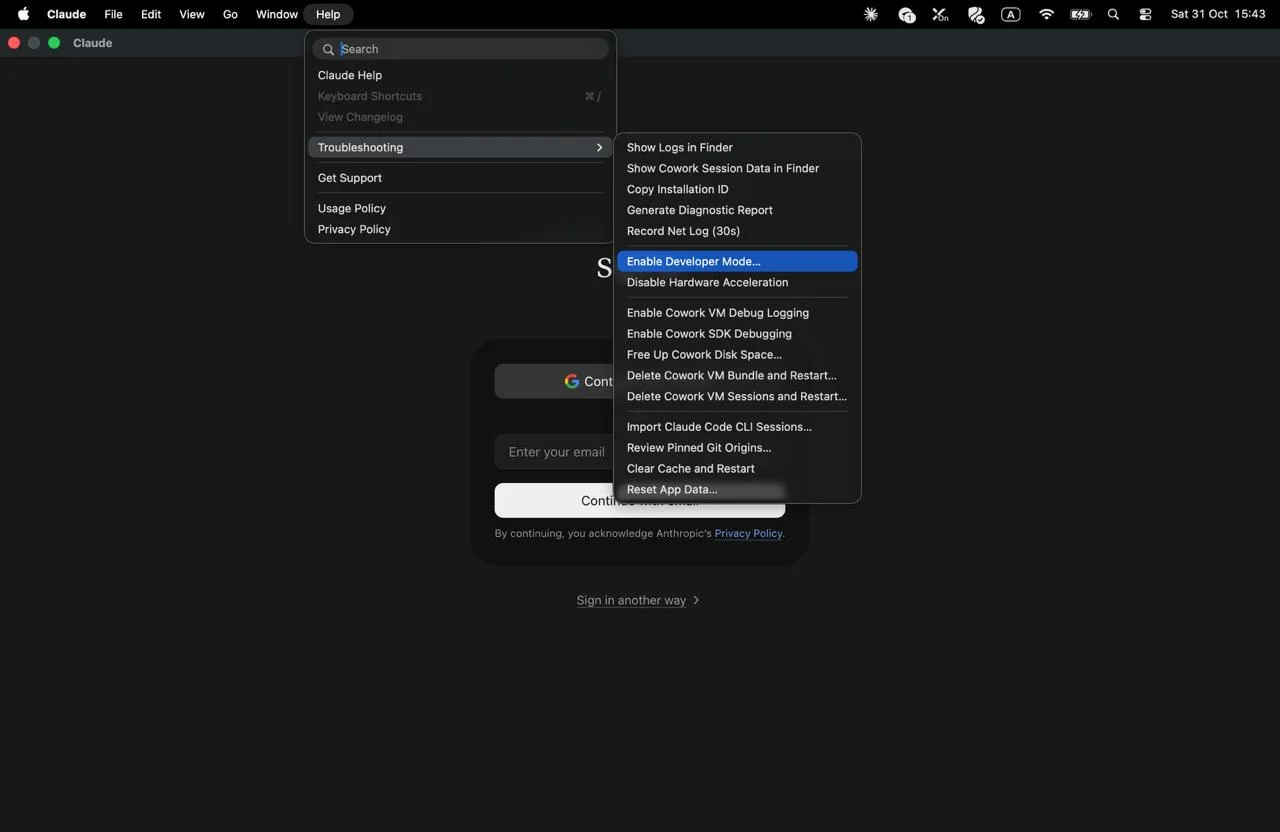
- Choose Help → Troubleshooting → Enable Developer Mode. The app restarts and the Developer menu appears.
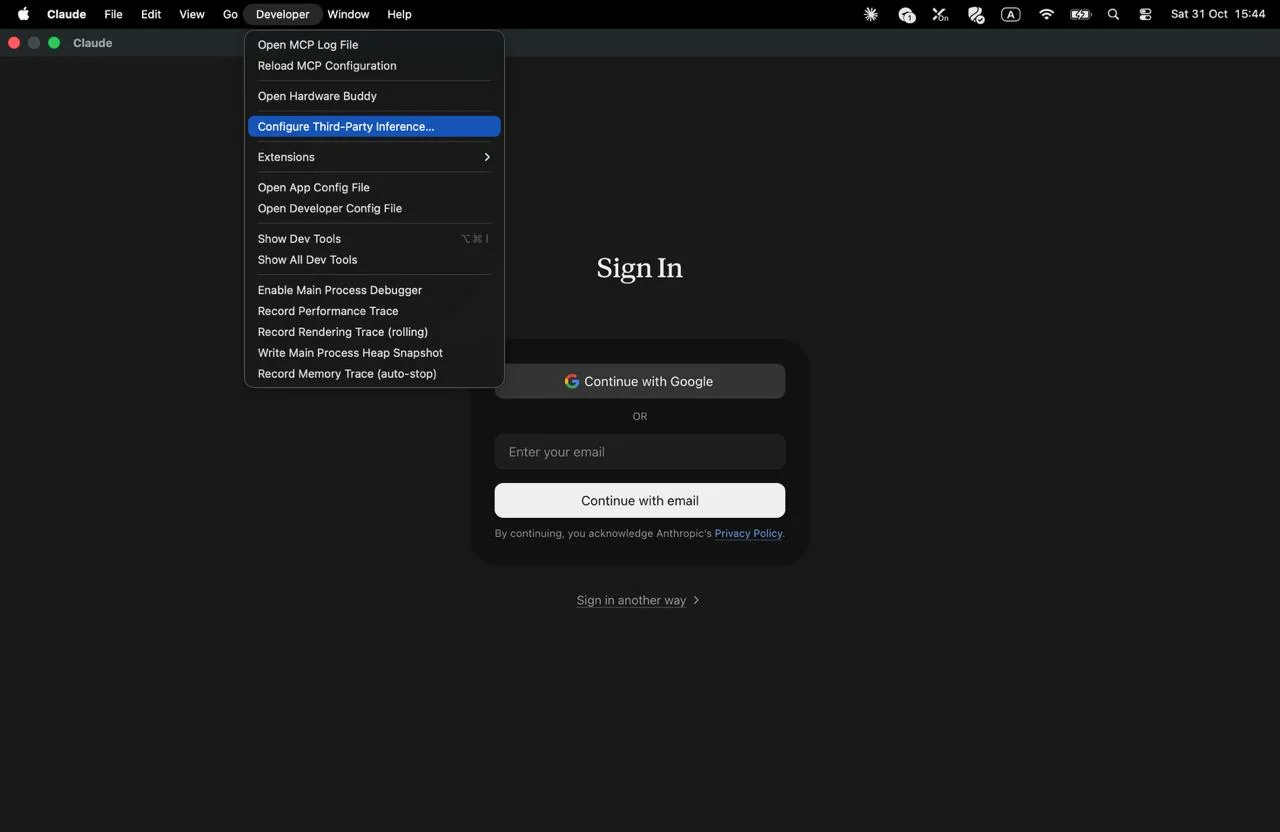
- Choose Developer → Configure Third-Party Inference….
- In the Connection section, choose Gateway and enter the values below. Paste the Apily key into the app's credential field, not into a project file.
Field names are shown as they appear in the app's English interface.
https://api.apily.pro/v1 to the gateway base URL. Do not select OpenAI / Chat Completions, and do not paste this configuration into claude_desktop_config.json as an MCP server.3. Apply the settings and open the Code tab
- Run the connection test in the configuration window, then choose Apply Changes → Save & Restart. The app restarts and shows the You’re using Gateway banner.
- Open the Code tab and select your project folder.
- Choose This computer and the Manual permission mode so you can review tool requests. Leave Auto mode off: its separate classifier may request a model that is not available through the gateway. On native Windows, shell commands are not sandboxed; approve them only for trusted projects.
- Select
claude-haiku-5-5and send the prompt below. When Claude repliesOK, send your project task. Requests and charges appear in your Apily account.
Reply with exactly OK. Do not use tools.4. Optional: fixed model list
Desktop discovers Claude model IDs from the gateway automatically. If discovery returns nothing or you prefer a fixed list, use the Models section of the same configuration window. Enter full exact IDs; the first entry becomes the default.
claude-haiku-5-5
claude-sonnet-5-5
claude-opus-5-5
claude-fable-5-1
The fixed list replaces automatic discovery, so update it manually when you want to add models.
Troubleshooting
| Symptom | Cause | Fix |
|---|---|---|
| The Developer menu is missing | Developer Mode is not enabled. | Choose Help → Troubleshooting → Enable Developer Mode. The app restarts and the Developer menu appears. |
| Configuration is read-only | A managed policy is active on the device. | Ask your administrator. |
| Gateway unreachable | Wrong base URL or no network access. | Set the base URL to https://api.apily.pro without /v1, check your network connection and run the connection test in the settings window. |
| The connection test fails with 401 | Wrong key, extra spaces or a different auth scheme. | Paste the Apily key into Gateway API key again without extra spaces and set Gateway auth scheme to bearer. |
| The app still uses the standard sign-in | The third-party configuration was not applied. | Choose Apply Changes → Save & Restart, then check that the You’re using Gateway banner appears after the restart. |
| Empty model picker | Model discovery is off, returned nothing, or a fixed list overrides it. | Check that GET /v1/models responds, that discovery is on and whether a fixed Models list is set. Use exact Claude IDs and restart the app. |
402 Insufficient balance | Your token balance can't cover the request's estimated cost. | Top up your balance on the Billing page in your Apily account. |
403 Email not verified | Your Apily account's email address isn't verified yet. | Verify your email from the banner in the Apily app, then retry. |
503 Model temporarily unavailable | The model exists, but no upstream provider is reachable right now. | Retry in a moment — it usually recovers within a minute. Switch models if it keeps happening. |
Diagnostics without exposing the key
Choose Help → Troubleshooting → Generate Diagnostic Report → Export to file and check managed-config.txt, provider-status.txt and deployment-mode.txt. Review and redact the archive before sharing it: configuration exports and logs can contain credentials, paths or user content despite built-in masking.
Return to standard Claude Desktop
Use the Anthropic sign-in option on the sign-in screen to return to standard mode. A managed device may restrict this choice; contact your administrator. Standard mode has its own account and subscription requirements and is not billed to your Apily key.
Official sources
Documentation: In-app configuration, Single-machine setup, Gateway configuration, Code on third-party platforms, Verification and diagnostics, Desktop gateway routing.